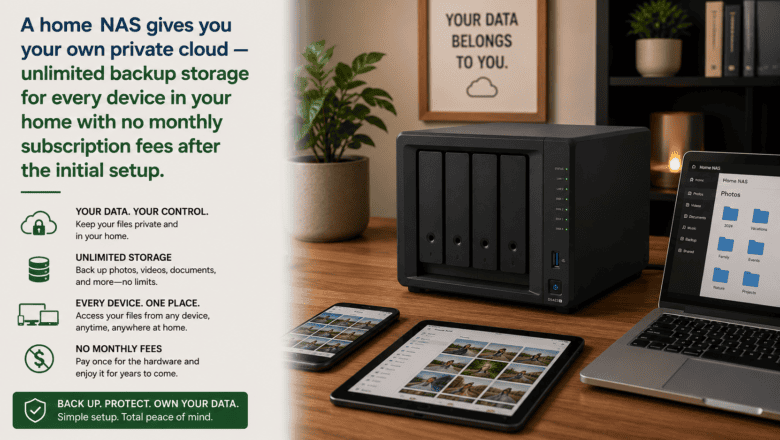
A home NAS gives you your own private cloud — unlimited backup storage for every device in your home with no monthly subscription fees after the initial setup.
STEP 1 — Understand What a NAS Does
A NAS is a small dedicated server that sits on your home network and stores files accessible from any device in the house. It backs up all your computers automatically, stores your photo library, streams media to your TV, and syncs files across devices — all without monthly fees after the initial hardware purchase.
STEP 2 — Choose a NAS Device
Synology is the most recommended brand for home use because of its polished DiskStation Manager software and excellent app ecosystem. A 2-bay model like the Synology DS223 is the sweet spot for most homes — it supports two hard drives and RAID 1 mirroring which keeps a real-time copy of your data on both drives simultaneously.
STEP 3 — Install the Hard Drives
NAS drives need to be designed for NAS use — standard desktop drives are not built for the vibration, heat, and always-on workload. Seagate IronWolf and Western Digital Red are the two most popular NAS-specific drive lines. Install drives into the bays following the manufacturer’s instructions.
STEP 4 — Connect and Power On
Connect the NAS to your router with an Ethernet cable, plug it in, and power it on. Initial startup can take 5-10 minutes. Download the Synology Assistant or your brand’s discovery tool — it will find the NAS on your network and guide you through the initial setup wizard.
STEP 5 — Set Up RAID for Data Protection
During setup, configure your two drives in RAID 1 mirroring mode. This means every piece of data is written to both drives simultaneously. If one drive fails, the other contains a perfect copy and you simply replace the failed drive without losing any data.
STEP 6 — Install Backup Apps on All Your Devices
Install the Synology Drive or Active Backup app on your computers to back them up automatically to the NAS. Install DS Photo on phones to automatically sync photos to the NAS. Set up backup schedules to run nightly while devices are idle.
Pro Tip
Q: What is the best tip for someone learning to set Up a Home NAS for Personal Backups?
A: A NAS alone is not a complete backup solution — it is local storage. Follow the 3-2-1 rule and also back up your NAS data to an offsite location. Synology’s Cloud Sync app can replicate your NAS to Backblaze B2 cloud storage — an affordable offsite safety net.
SUPPLIES NEEDED
NAS device — 2-bay is a good start
Compatible hard drives — 2 drives for RAID 1 redundancy
Ethernet cable
Router with an available LAN port
NAS manufacturer app
Products from Amazon
This site contains affiliate links. As an Amazon Associate I earn from qualifying purchases.