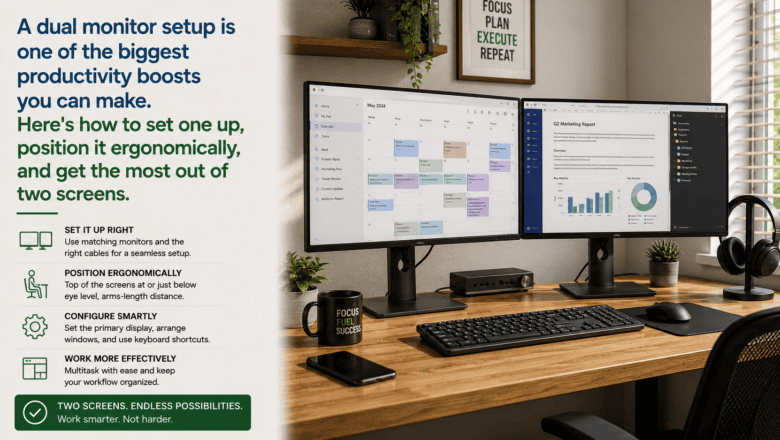
A dual monitor setup is one of the biggest productivity boosts you can make. Here’s how to set one up, position it ergonomically, and get the most out of two screens.
STEP 1 — Check Your Computer’s Output Ports
Before buying a second monitor, identify what video output ports your computer has — HDMI, DisplayPort, USB-C with DisplayPort, or a combination. Check how many external monitors your GPU or integrated graphics can support. Most modern computers handle at least two external displays without issue.
STEP 2 — Choose a Matching or Complementary Monitor
For the best visual experience, choose a second monitor that matches your primary in resolution, size, and panel type. Mismatched monitors create a jarring color and brightness difference when moving your eyes between screens throughout the workday.
STEP 3 — Connect the Second Monitor
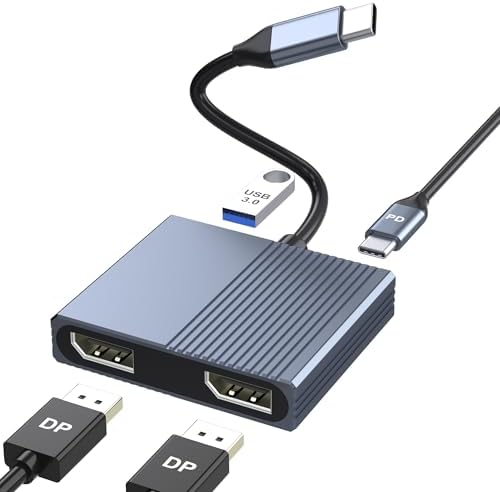
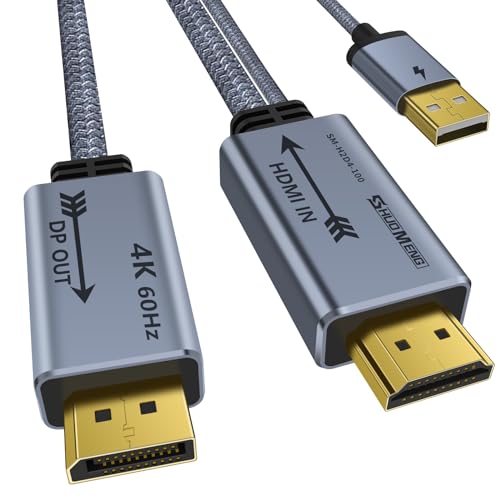
Connect using the appropriate cable — HDMI to HDMI is most common. If your laptop lacks the right port, use a USB-C to HDMI or DisplayPort adapter. Once connected, your computer should automatically detect the second display and extend the desktop.
STEP 4 — Configure Display Settings
On Windows, right-click the desktop and select Display Settings. You will see both monitors numbered. Click Identify to confirm which number corresponds to which physical screen. Drag the monitor icons to match their physical arrangement on your desk. Set both to their native resolution.
STEP 5 — Position Monitors Ergonomically
Position both monitors at equal height with the tops of screens at or just below eye level. If you split time evenly between both screens, place them in a slight V-shape in front of you. If you use one primarily, center it in front of you and angle the secondary to the side.
STEP 6 — Manage Cables and Optimize the Space
Use cable clips, a raceway, or a monitor arm with built-in cable management to route cables cleanly. A monitor arm for the secondary display frees up desk surface and allows precise positioning. Set different wallpapers on each monitor to easily distinguish them at a glance.
Pro Tip
Q: What is the best tip for someone learning to set Up a Dual Monitor Workstation?
A: On Windows, Microsoft’s free PowerToys utility adds a FancyZones feature that creates custom snap zones for each monitor so windows snap to predefined areas rather than just halves and quarters. This dramatically improves how efficiently you use dual screen real estate.
SUPPLIES NEEDED
Second monitor compatible with your computer
HDMI or DisplayPort cable or USB-C adapter
Monitor stand or arm optional
Cable management clips
Products from Amazon

This site contains affiliate links. As an Amazon Associate I earn from qualifying purchases.


![[Made in the UK] 10-Pack Adjustable Elastic Adhesive Cable Clips,...](https://m.media-amazon.com/images/I/51lGEjLTrIL.jpg)