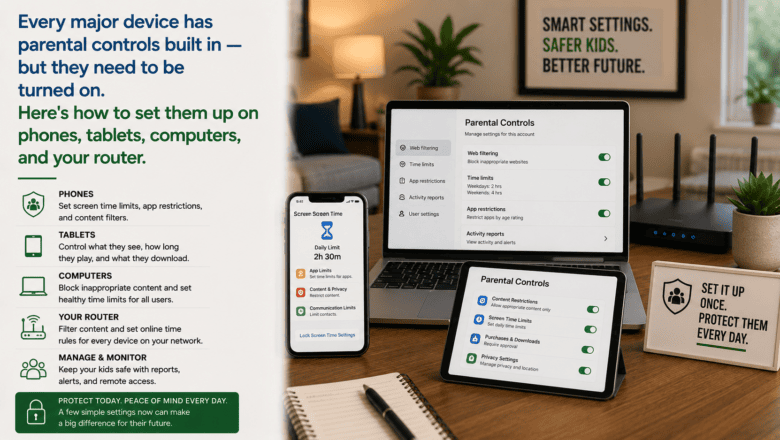
Every major device has parental controls built in — but they need to be turned on. Here’s how to set them up on phones, tablets, computers, and your router.
STEP 1 — Start at the Router Level for Whole-Home Control
The most powerful parental control layer is your router, which filters content for every device on your home network including smart TVs and gaming consoles. Log in to your router’s admin panel by typing its IP address into a browser — usually 192.168.1.1 or 192.168.0.1.
STEP 2 — Set Up iPhone and iPad Screen Time
On iPhone and iPad, go to Settings then Screen Time and tap Turn On Screen Time. Set a Screen Time passcode different from the device passcode. Under Content and Privacy Restrictions, set age-appropriate content ratings, restrict explicit content, disable in-app purchases, and set communication limits.
STEP 3 — Set Up Android With Google Family Link
Download Google Family Link. Create a child account linked to your Google account, then pair it with your child’s Android device. Family Link lets you approve or block app downloads, set daily screen time limits, review activity reports, and lock the device remotely from your phone.
STEP 4 — Set Up Windows Parental Controls
Sign in to your Microsoft account and go to family.microsoft.com. Add a child account and link it to their Windows device. Microsoft Family Safety lets you filter websites, set screen time schedules, and control which apps and games can be installed. Controls sync across Xbox as well.
STEP 5 — Set Up Mac Parental Controls
On Mac, go to System Settings then Screen Time and set up parental controls for child accounts. You can limit app usage, set communication limits, filter adult websites, and get weekly activity reports. Enable the Screen Time passcode to prevent children from modifying settings.
STEP 6 — Use a DNS-Based Filter for Any Device
Services like Circle, CleanBrowsing, or NextDNS provide DNS-based filtering that blocks inappropriate content across every device on your network regardless of operating system.
Pro Tip
Q: What is the best tip for someone learning to set Up Parental Controls on Any Device?
A: Parental controls work best as one part of a broader conversation about internet safety — not as a replacement for it. Set the controls together with your child, explain why limits are in place, and review them regularly as your child gets older and earns more trust.
SUPPLIES NEEDED
The devices you want to control
Router admin access credentials
Google Family Link or Apple Screen Time app
Your router brand’s app or admin panel