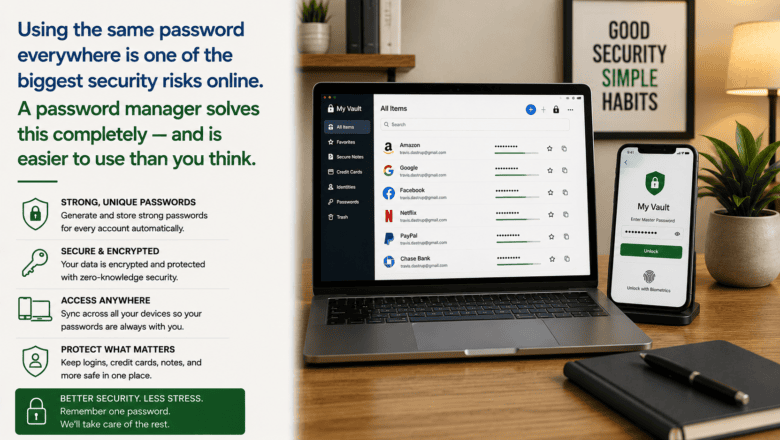
Using the same password everywhere is one of the biggest security risks online. A password manager solves this completely — and is easier to use than you think.
STEP 1 — Choose a Password Manager
Bitwarden is free, open-source, and excellent for most users. 1Password is the top premium option at around $3 per month with outstanding apps on every platform. Avoid browser-built-in password saving as your sole solution — it does not work securely across all devices and platforms.
STEP 2 — Create a Strong Master Password
Your master password unlocks everything else — make it the strongest you have ever created. Use a passphrase of 4-5 random unrelated words such as purple-lamp-guitar-mountain-river. Write it down and store it somewhere physically safe. If you forget it, most managers cannot recover your vault.
STEP 3 — Install the Apps and Browser Extension
Install the password manager app on your phone and computer, and add the browser extension to Chrome, Safari, or Firefox. The browser extension detects login forms automatically and fills your credentials with one click — this is what makes the tool seamless to use daily.
STEP 4 — Import Your Existing Passwords
Most password managers let you import saved passwords from your browser. In Chrome, go to Settings then Passwords then Export. In Safari, go to Preferences then Passwords then Export. Import this file into your password manager to migrate all existing credentials at once.
STEP 5 — Update Weak and Reused Passwords
Use the password manager’s security audit feature to identify reused and weak passwords. Start with your most important accounts — email, banking, and social media. Use the built-in password generator to create a unique random 20-character password for each account and save it before updating.
STEP 6 — Enable Two-Factor Authentication
A password manager protects your passwords but two-factor authentication adds a second layer of protection even if a password is compromised. Enable 2FA — preferably using an authenticator app rather than SMS — on email, banking, and social media accounts as a priority.
Pro Tip
Q: What is the best tip for someone learning to use a Password Manager to Stay Secure Online?
A: Most password managers have a family or team plan that lets you securely share passwords with household members. This is far safer than texting passwords and lets you share streaming service logins, Wi-Fi passwords, and household account credentials in an encrypted vault.
SUPPLIES NEEDED
A password manager app such as Bitwarden, 1Password, or Dashlane
An email address for your master account
10-15 minutes for initial setup
Products from Amazon

This site contains affiliate links. As an Amazon Associate I earn from qualifying purchases.


