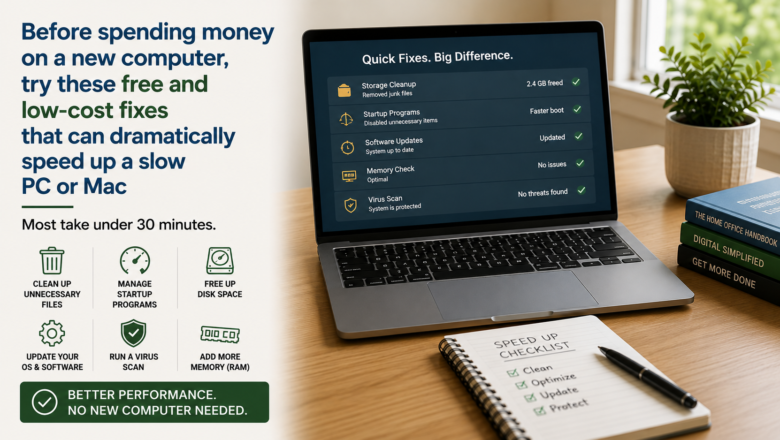
Before spending money on a new computer, try these free and low-cost fixes that can dramatically speed up a slow PC or Mac — most take under 30 minutes.
STEP 1: Restart and Audit What Is Running
A fresh restart clears accumulated memory and kills background processes that build up over time. After restarting, open Task Manager on Windows with Ctrl+Shift+Esc, or Activity Monitor on Mac, to see exactly which programs are consuming the most CPU and memory right now.
STEP 2: Disable Unnecessary Startup Programs
Too many programs launching at startup is one of the most common causes of a slow computer. On Windows go to Task Manager then the Startup tab and disable anything you do not need running immediately. On Mac go to System Settings then General then Login Items.
STEP 3: Free Up Disk Space
A drive that is more than 80 percent full slows dramatically. Delete files you no longer need, empty the Recycle Bin or Trash, and move large files like photos and videos to an external drive. On Windows run Disk Cleanup. On Mac use the built-in Storage Management tool under the Apple menu.
STEP 4: Scan for Malware and Adware
Malware and adware run silently in the background and consume significant CPU and memory resources without your knowledge. Run Malwarebytes — widely trusted and free for a basic scan — to check for and remove any infections before assuming hardware upgrades are needed.
STEP 5: Upgrade RAM or Replace with an SSD
If software fixes are not enough, two hardware changes make the biggest difference. Adding RAM — 8GB minimum and 16GB recommended for modern use — dramatically improves multitasking. Replacing an old spinning hard drive with an SSD is often the single biggest speed improvement possible on any older machine.
STEP 6: Clean Dust from Vents and Fans
Dust buildup causes overheating, which forces the processor to slow itself down automatically to prevent damage. Use compressed air to blow out vents and fans. Do this outdoors and hold fans still so they do not spin too fast from the air pressure.
PRO TIP
Q: Should I do anything before making hardware changes to my computer?
A: Yes — always back up your files to an external drive first.
Q: Is it worth upgrading hardware on an older computer?
A: If your computer is more than 7-8 years old, upgrading may cost more than it’s worth — a new entry-level laptop could be the better investment.
SUPPLIES NEEDED
Your existing computer
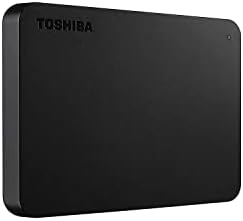
External hard drive or USB drive for backup before making changes
RAM upgrade kit if doing a hardware fix
Internal SSD if replacing an old hard drive
Compressed air can for cleaning dust from vents
Products from Amazon

This site contains affiliate links. As an Amazon Associate I earn from qualifying purchases.